Working from home has brought many challenges, especially with two of us sharing the same office space. Our office is setup on the first floor and shares an open doorway with the entry area for the front door and garage door. It's the only way into or out of our house. When you are in the office on a meeting it can sometimes be quite difficult to let anyone coming through the door know that cameras and microphones might be active just around the corner.
We didn't really think this would be a problem, until we discovered that the perfect time to walk the dog in the summertime was during our morning meetings. And really anytime we have meetings. For several years we've done the "Are you on a call?" question from the entry way, hiding behind the wall, and hoping the other person was in a position to answer before looking around the corner.
We've both made the mistake at some point: either walking into the room at just the wrong time, or walking into the bathroom that was conveniently in perfect view of both of our cameras blissfully unaware that an entire group of people was watching. Even with a blurred background, it wasn't ideal.
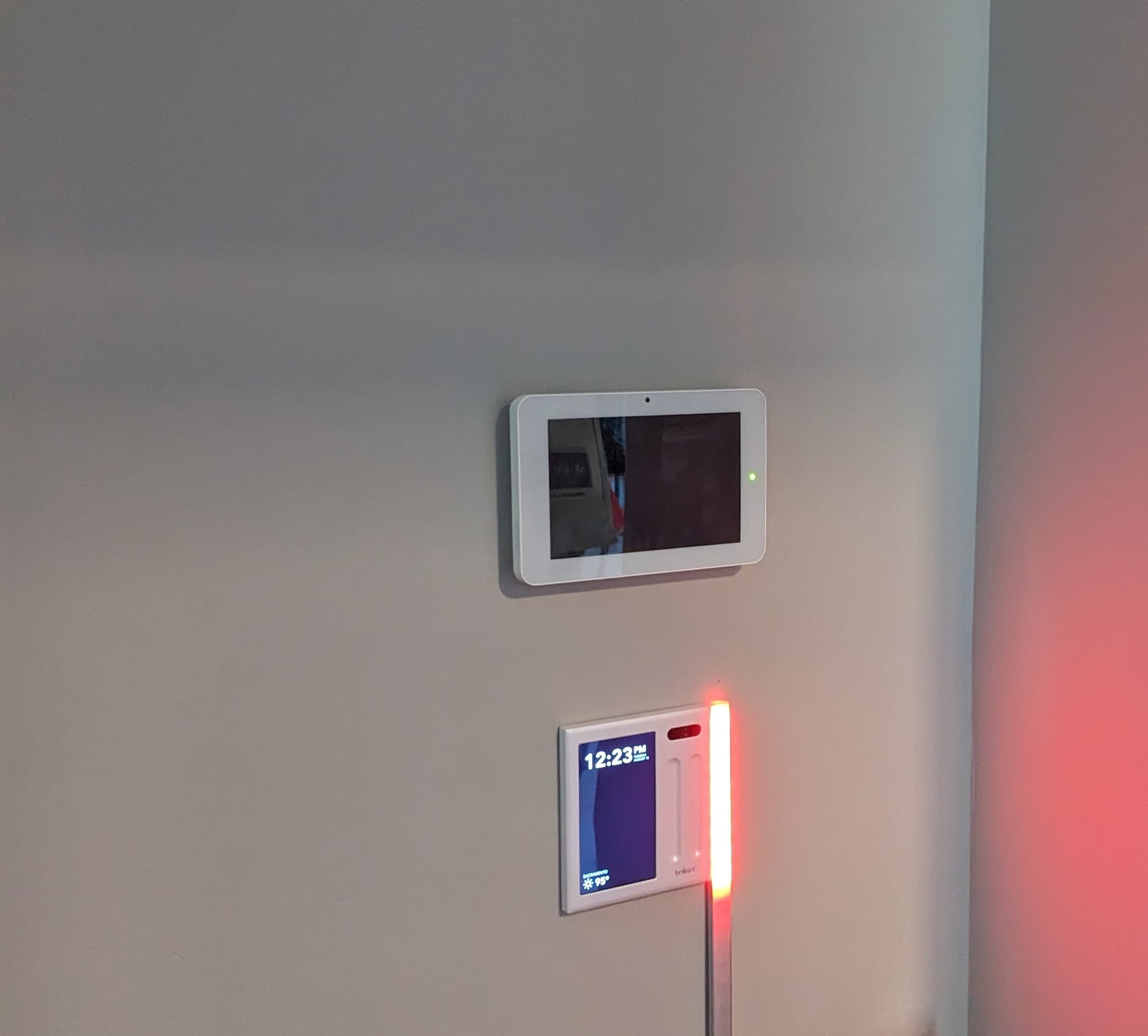
Enter my next home improvement project idea: An "On-Air" meeting light in the entry way that automatically activates when one of our cameras or microphones becomes active.
There are two components to this project: The software side to activate the light at the right time, and the building of the light itself.
Hardware
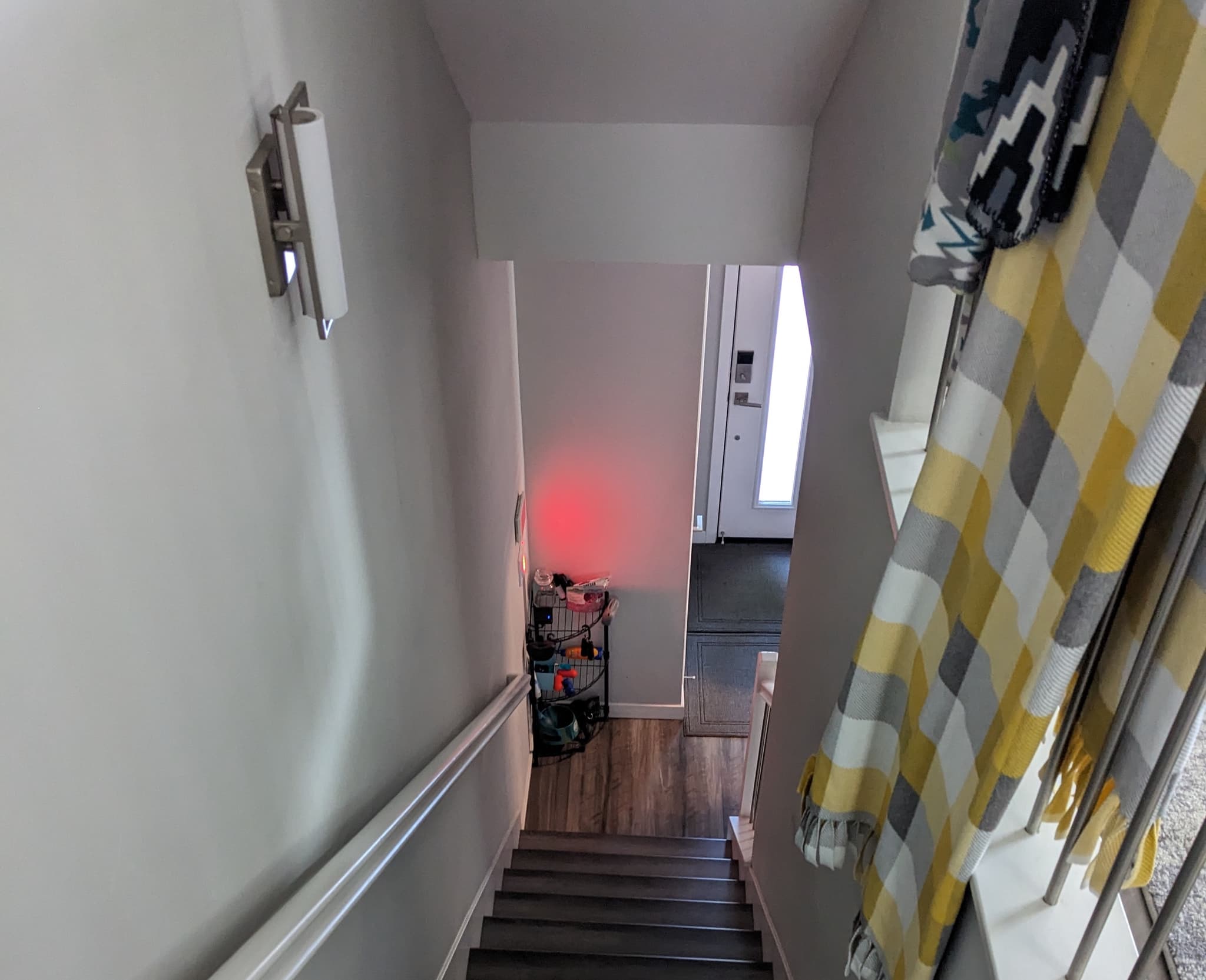
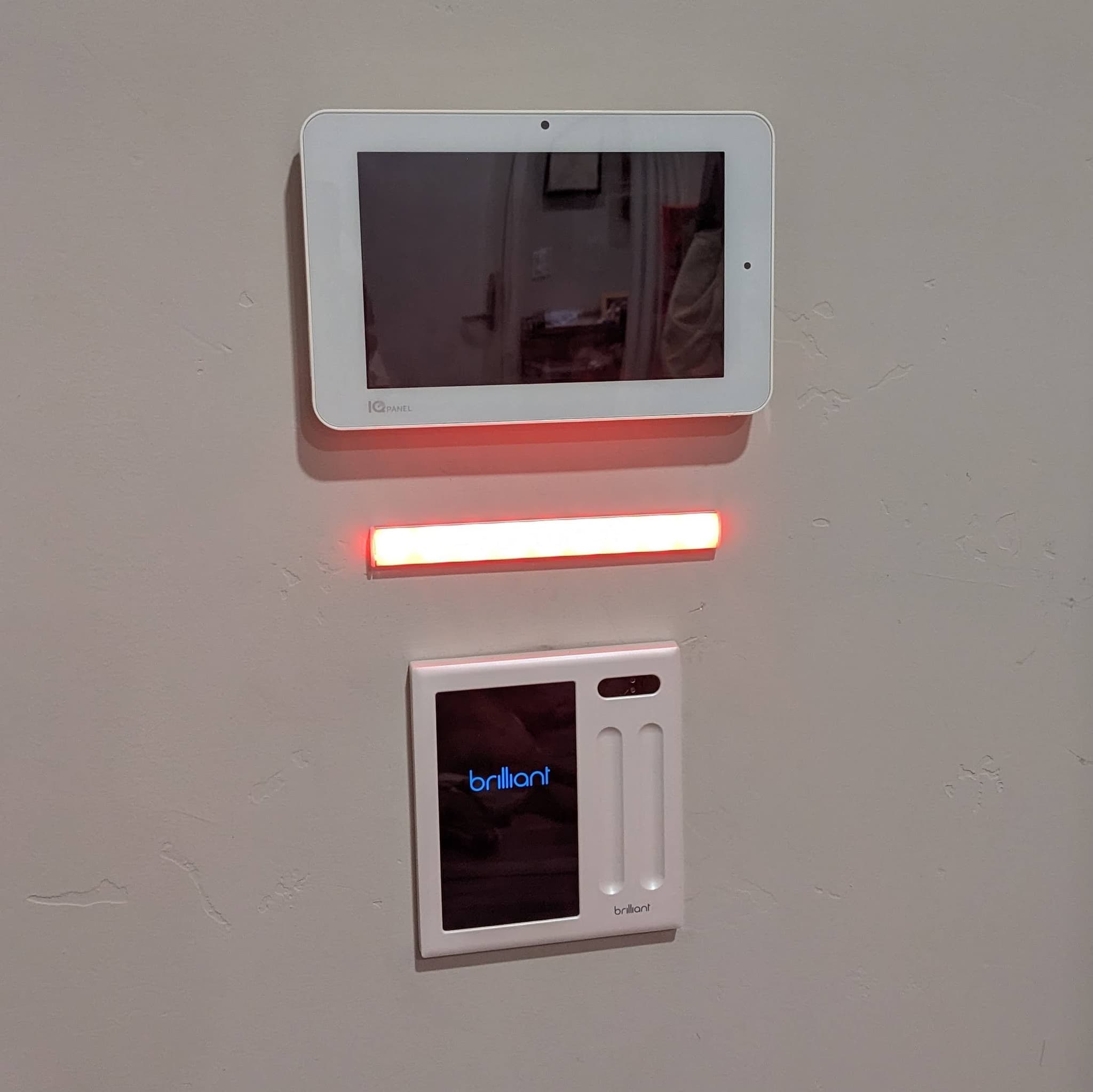
For this project I had the perfect spot in mind: centered between the alarm control panel and light switch in the entry way. It has access to power, both high and low voltage, and visibility from both the garage door and front door as well as the staircase to the second floor.
I borrowed the general hardware design from several of my other LED projects: an ESP8266 dev board with WLED firmware powering a short WS2812B strip of LEDs.
Testing The Concept
The first task was to test the concept. I placed one of my existing LED test strips powered by a portable USB battery. It also uses an ESP8266 board with WLED firmware powering a short strip of WS2812B LEDs. We tested this out manually for the first week with positive results. When one of us went on a meeting we simply activated the light from the WLED app.
Power Requirements
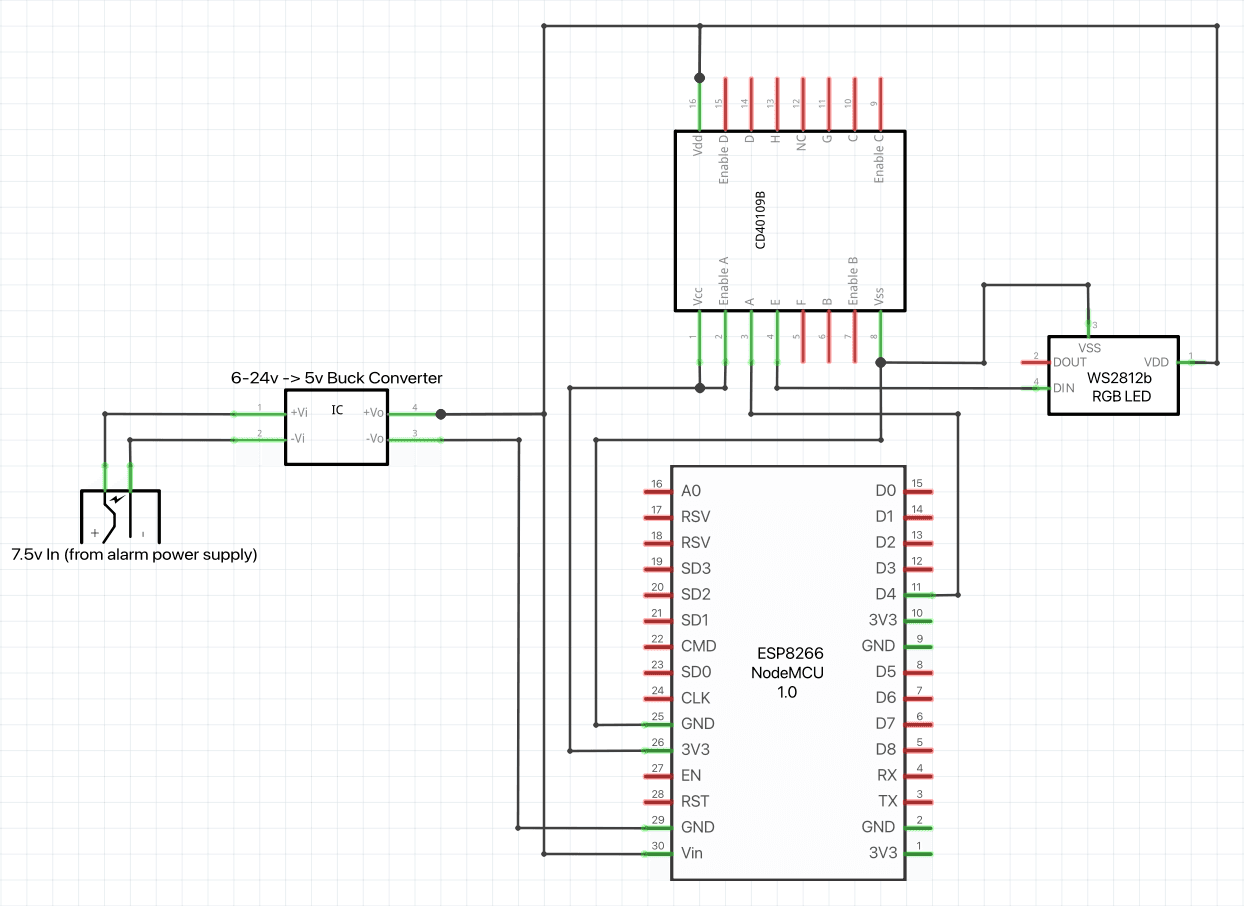
Visually it worked exactly how we wanted, so the next step was to build and install the light. I tested the power supply for the alarm panel in the wall, and it was supplying 7.5v which would be sufficient to power the new light.
I had some extra 5v buck converters on hand from a previous project that accepts a 6v-24v input and provides a 5v output up to 1.5A.
The LED strip operates at 5v, and while the ESP operates at 3.3v internally, it has a USB input and a voltage regulator that will
accept 5v from the Vin pin and micro-USB port.
Circuit Design
The ESP8266 boards are very easy to work with, especially when paired with WLED firmware and WS2812B LED strips. The WS2812B needs a 5v input and
ground, and a data line from the data output on the ESP. The data pin on the ESP can be configured in the WLED firmware (for this project
I just used the default D4 pin).
The only complexity with this design is the voltage difference between the ESP and the WS2812B strip for the data signal. The ESP internally operates at 3.3v and while
it can accept a 5v input on the Vin pin, it will only output 3.3v on the data pins. In some cases, 3.3v can be enough to send data to the
WS2812B, but it's highly susceptible to data corruption if there's even the slightest amount of interference or voltage drop. I have a few
projects that work just fine this way (such as the test LED strip pictured above), however with those projects the data line is less than an
inch in length. For the meeting light, the data line would need to be 6-8in long, so I added a logic level shifter to increase the data signal to 5v
and reduce chances of data corruption.
LED Design
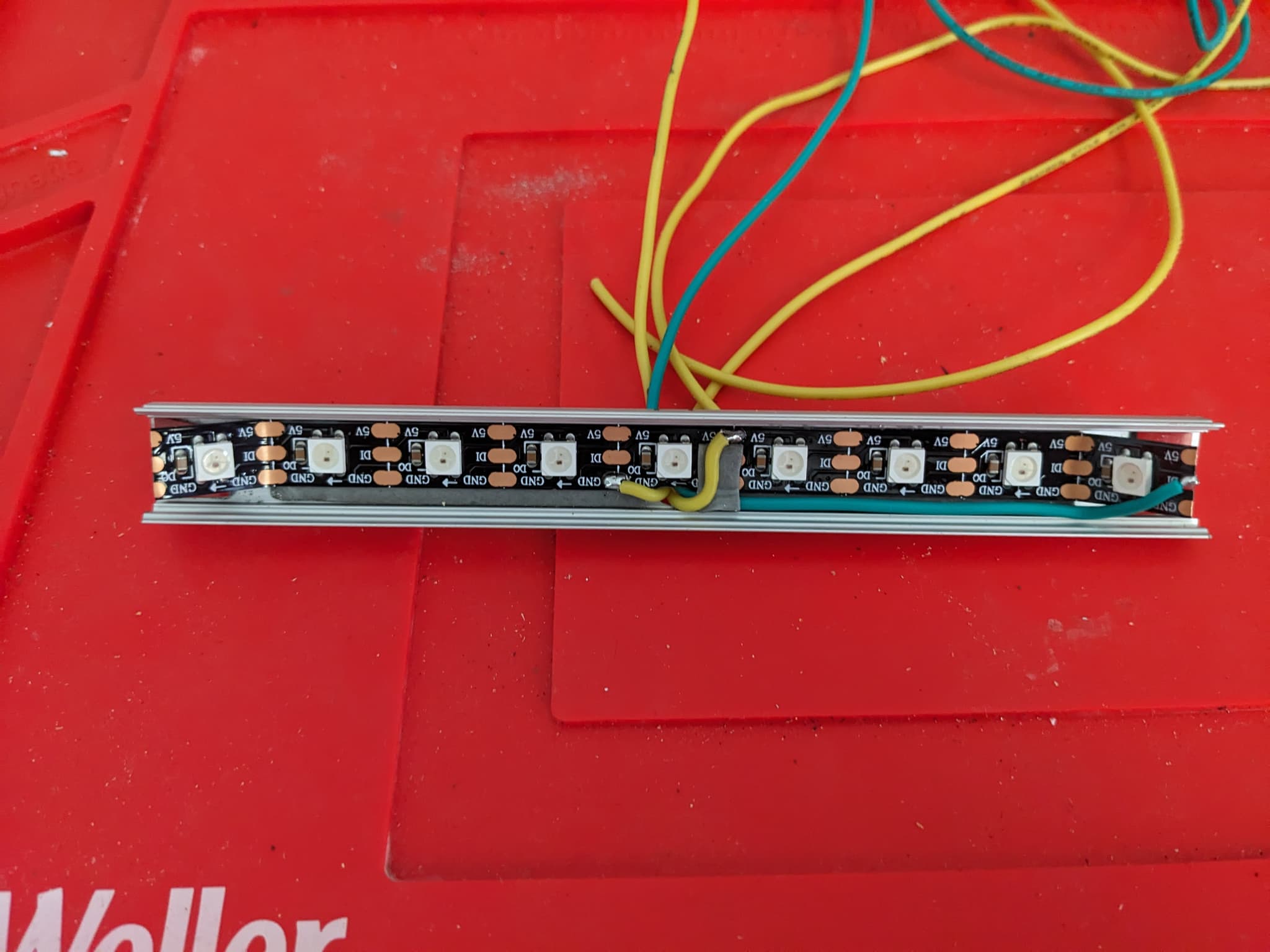
I had some leftover aluminum channel material with diffuser from other LED projects that I could cut to length. We chose to make the strip 6 inches long, which is enough space to accommodate 9 LEDs on the WS2912B strip plus wiring and end caps.
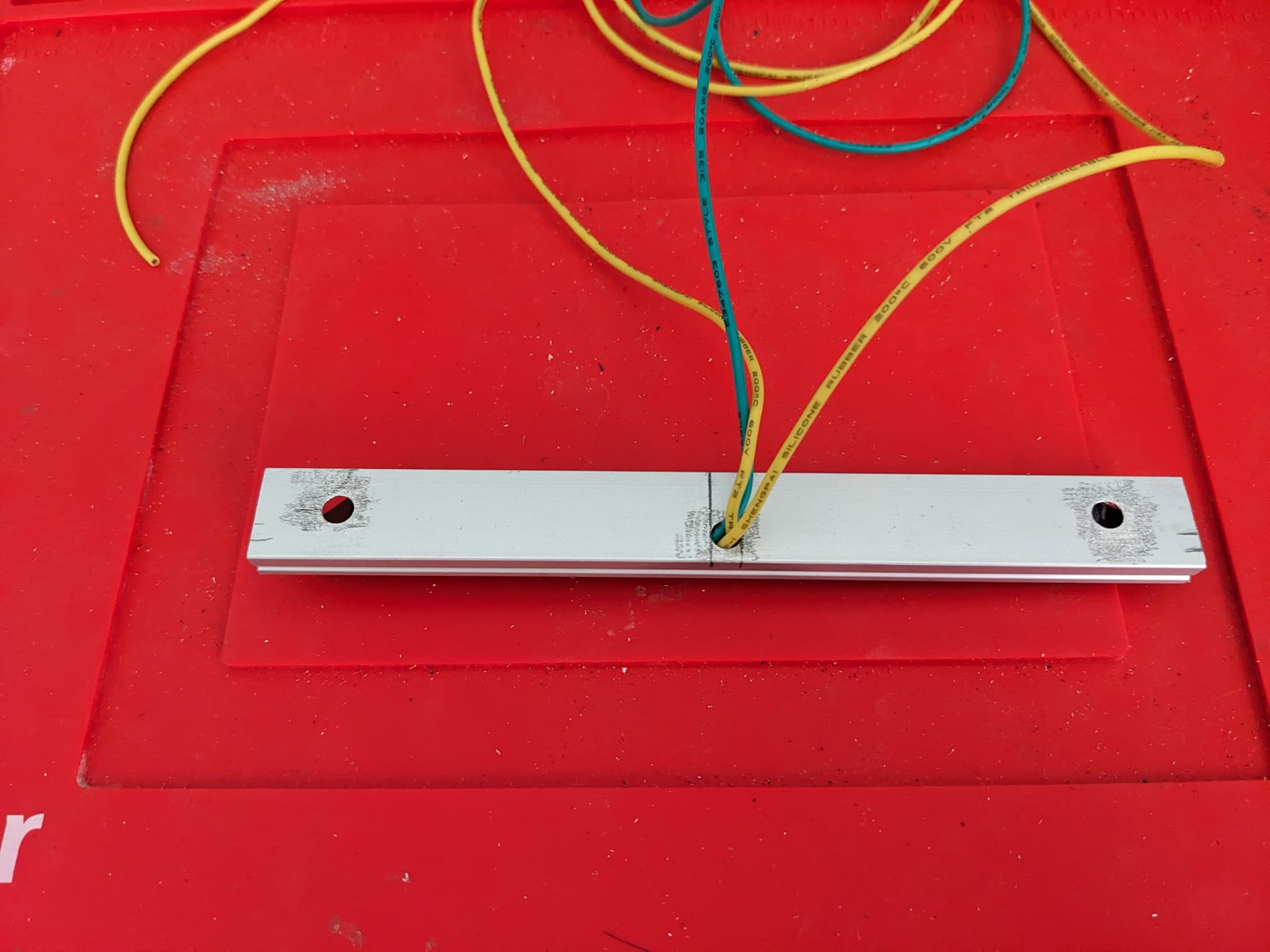
I drilled 3 holes in the back of the aluminum: two near each end of the channel for mounting, and one in the center to pass the wires through into the wall where the controller box would be mounted.
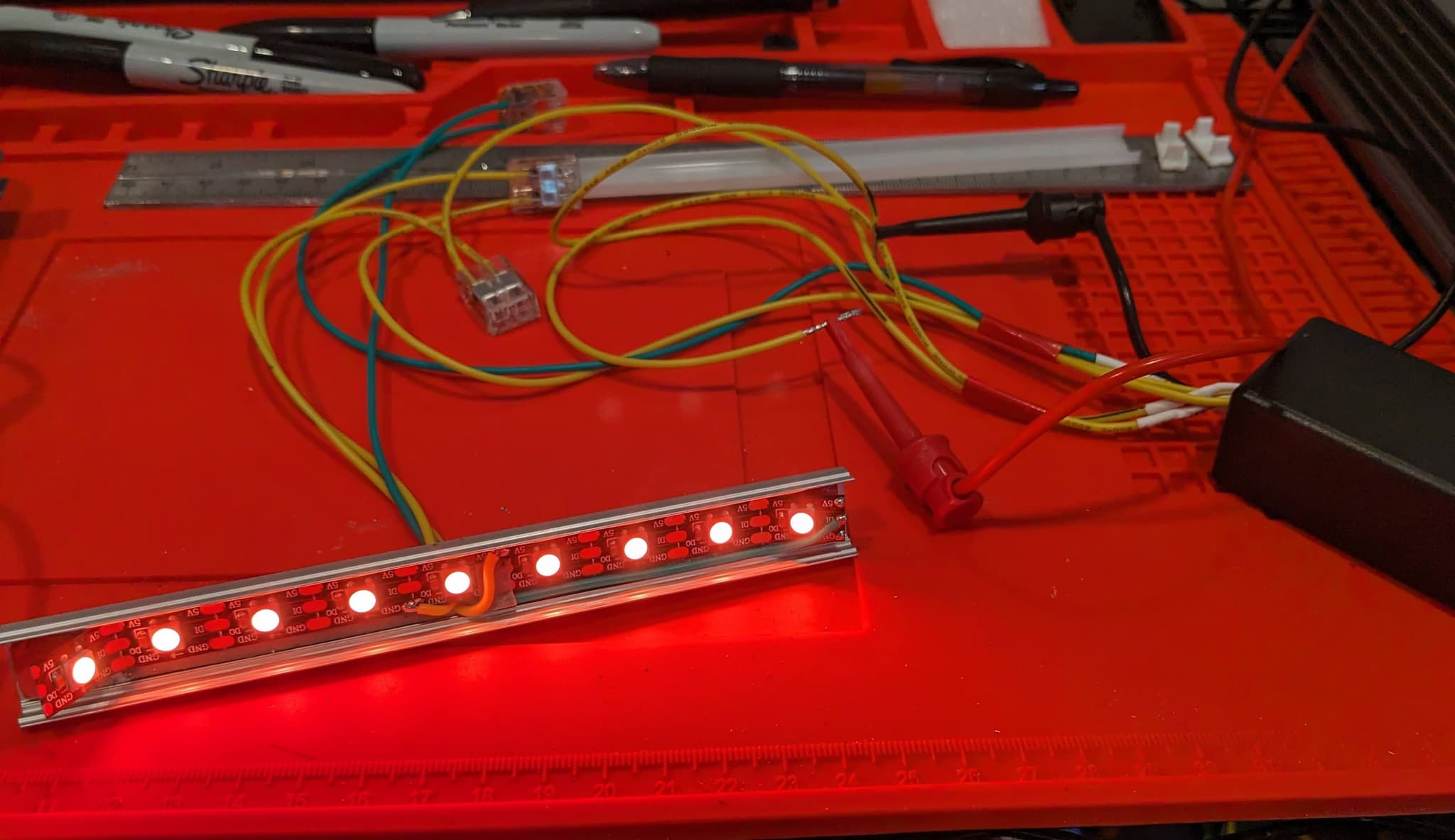
I attached the strip to the inner channel with 3M adhesive tape and soldered the three wires in place. The ends of the strip are folded upward and not yet attached with adhesive to allow access to the mounting holes. The very last step of the installation will be to attach the ends of the strip.
Controller box
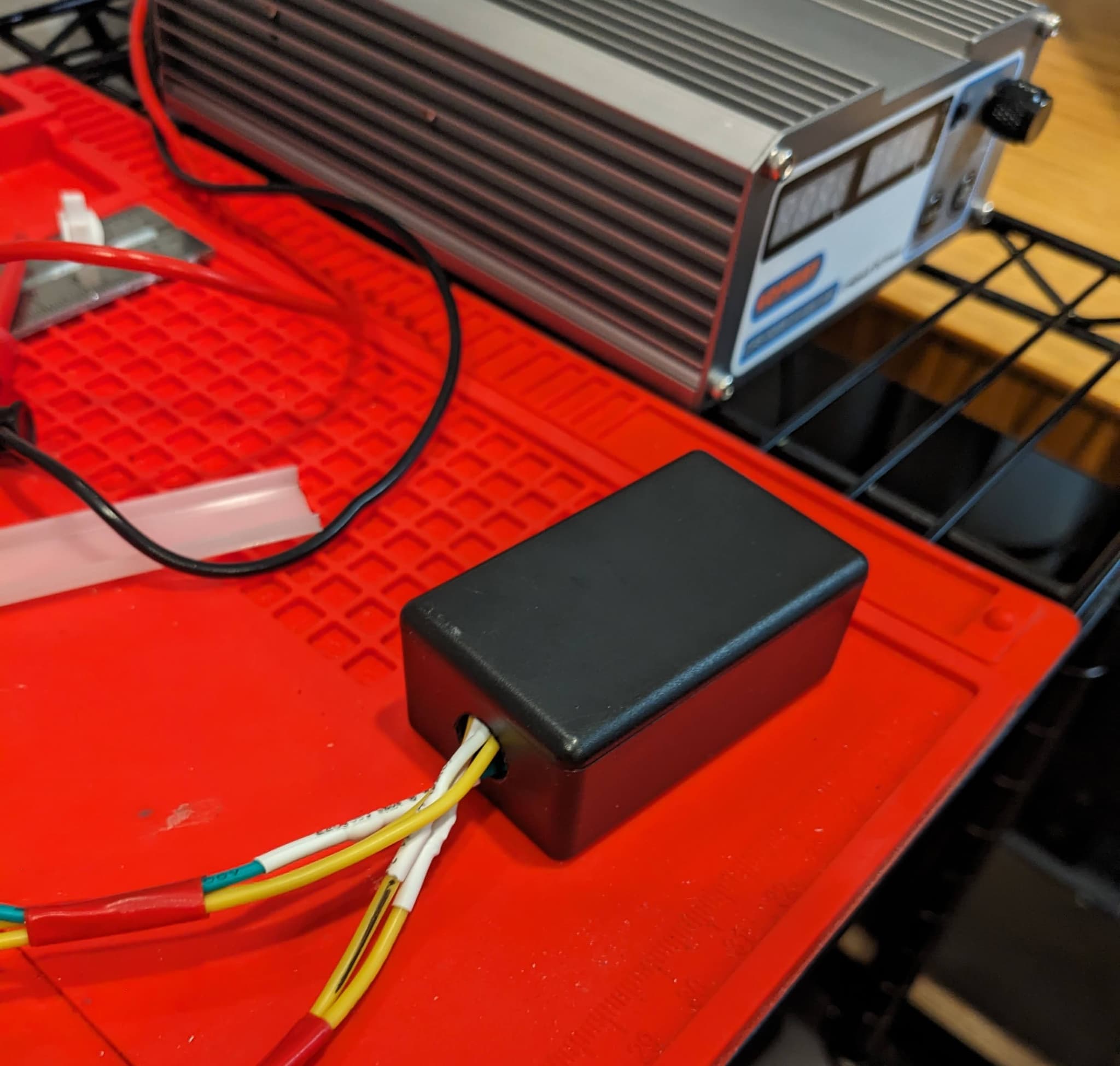
With the LED strip ready, it was time to put together the controller box. I found these little project boxes on Amazon a while back that fit the ESP board exceptionally well. I've used them in numerous projects with great results, and this one is no different.
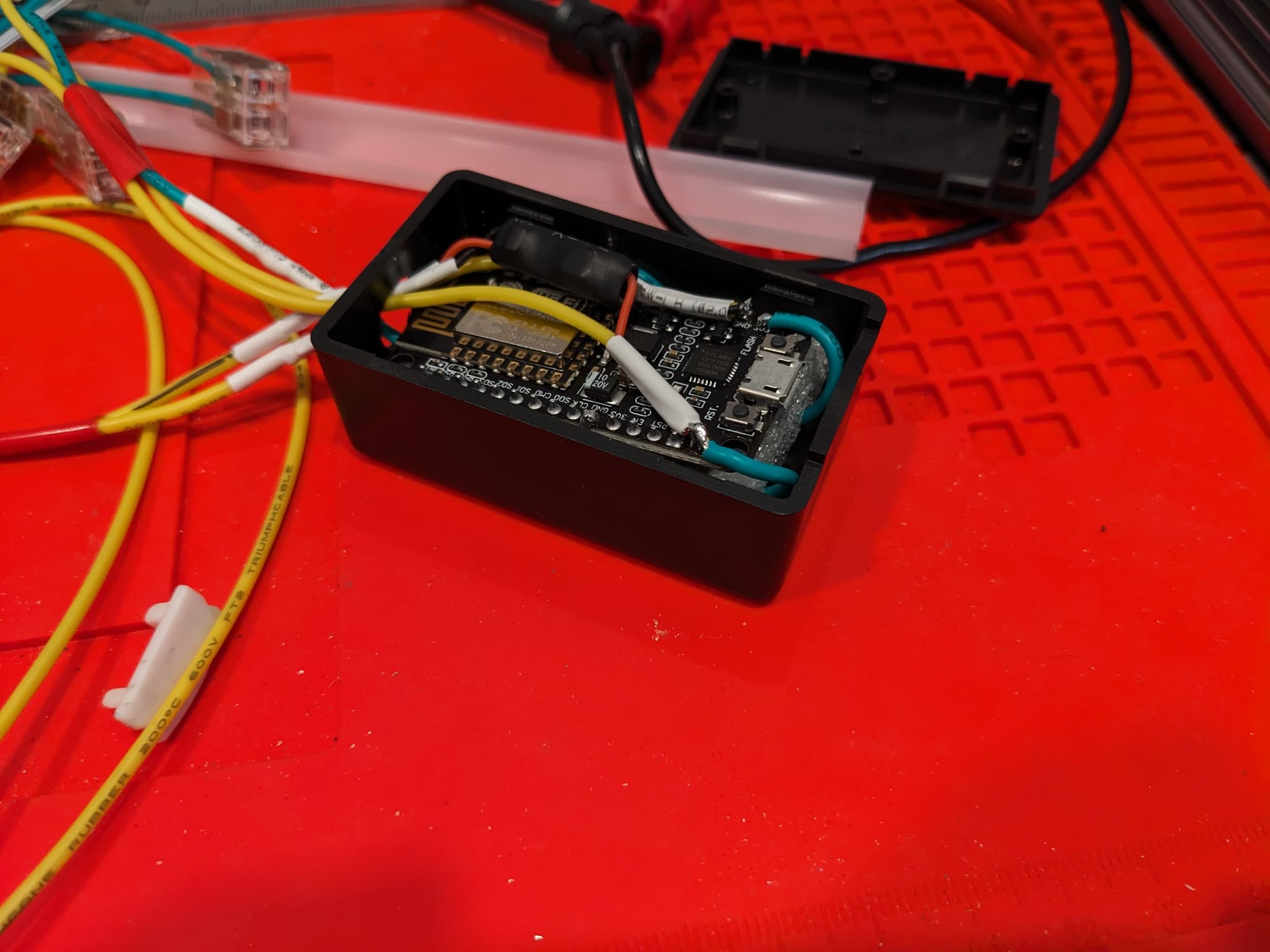
I mounted the logic level shifter to the bottom of the ESP and ran the wiring up to the pins. The buck converter is small enough to also fit inside the box with the ESP and logic level shifter:
Bench Test
Now that the LED strip and controller are hooked up, it's time to bench test everything and get the WLED software configured correctly.
I had previously bench tested the buck converter to be sure it would output the correct voltage and everything looked good. I connected the controller box wiring to the strip and turned on my DC power supply at 7.5v
Installation
With everything working correctly, the next step was to install the light!
Conveniently the mount holding the alarm panel in place had a large enough hole behind it in the wall that allowed my hand to get behind the drywall. I tapped into the alarm panel power supply wiring that ran down behind the wall, and added an inline fuse just to be safe. I then mounted the controller box to the back of the drywall with 3M adhesive tape.
I found the center point where I wanted to mount the strip and drilled the hole for the wires. I fed the wiring from the LED strip through the hole and up to the access hole behind the alarm panel, then lined everything up.

Next was to line up the light and get it level, then install the mounting screws to fully attach the strip to the wall. Once the light was mounted it was time to connect all the wiring, tuck everything neatly into the wall, reinstall the alarm panel and give it a try!
Software
With the light installed and complete, it was time to setup the software side to automatically activate and deactivate the light. I use Home Assistant for all of my home automations and it has a great integration with the WLED firmware installed on the ESP.
In order to trigger the light when we are on meetings, Home Assistant needs to know when the webcam is active. The Mac
Home Assistant app works great for this as one of the fields it can track is Active Camera.
With the Mac app installed and the ESP added to Home Assistant, the only component left was to configure the automations:
Activate The Meeting Light
alias: "Meeting In Progress [Activate]"
description: "Activate the meeting light when the webcam turns on"
trigger:
  - platform: state
    entity_id:
      - binary_sensor.ryanrussellmbp_camera_in_use
    from: "off"
    to: "on"
    for:
      hours: 0
      minutes: 0
      seconds: 5
condition:
  - condition: device
    device_id: ed267
    domain: device_tracker
    entity_id: device_tracker.ryanrussellmbp
    type: is_home
action:
  - type: turn_on
    device_id: 9308c
    entity_id: light.wled_s
    domain: light
    brightness_pct: 100
  - device_id: 2d0a7
    domain: select
    entity_id: select.wled_meeting_light_preset
    type: select_option
    option: Meeting
  - device_id: ed267
    domain: mobile_app
    type: notify
    message: Meeting Light Activated
    title: Meeting In Progress
mode: single
The trigger is configured to fire when the Home Assistant app detects the camera_in_use parameter transitioning
from off to on for a period of 5 seconds or more.
I wanted an additional condition that would only fire the automation if my laptop was determined to be "Home".
When the automation fires, it sets the WLED device to On and activates the Meeting preset, which I configured on the ESP
in the WLED software (which is just a steady red). It also fires a notification on my laptop to let me know the automation ran
and the light is active (since I can't see it from my desk).
Deactivating The Meeting Light
And finally when the meeting ends and my camera turns off, I need the meeting light to automatically deactivate:
alias: "Meeting In Progress [Deactivate]"
description: "Deactivate the meeting light when the webcam turns on"
trigger:
  - platform: state
    entity_id:
      - binary_sensor.ryanrussellmbp_camera_in_use
    from: "on"
    to: "off"
    for:
      hours: 0
      minutes: 0
      seconds: 0
condition:
  - condition: device
    device_id: ed267
    domain: device_tracker
    entity_id: device_tracker.ryanrussellmbp
    type: is_home
action:
  - type: turn_off
    device_id: 2d0a7
    entity_id: light.wled_meeting_light
    domain: light
  - device_id: ed267
    domain: mobile_app
    type: notify
    message: Meeting Light Deactivated
    title: Meeting Ended
mode: single
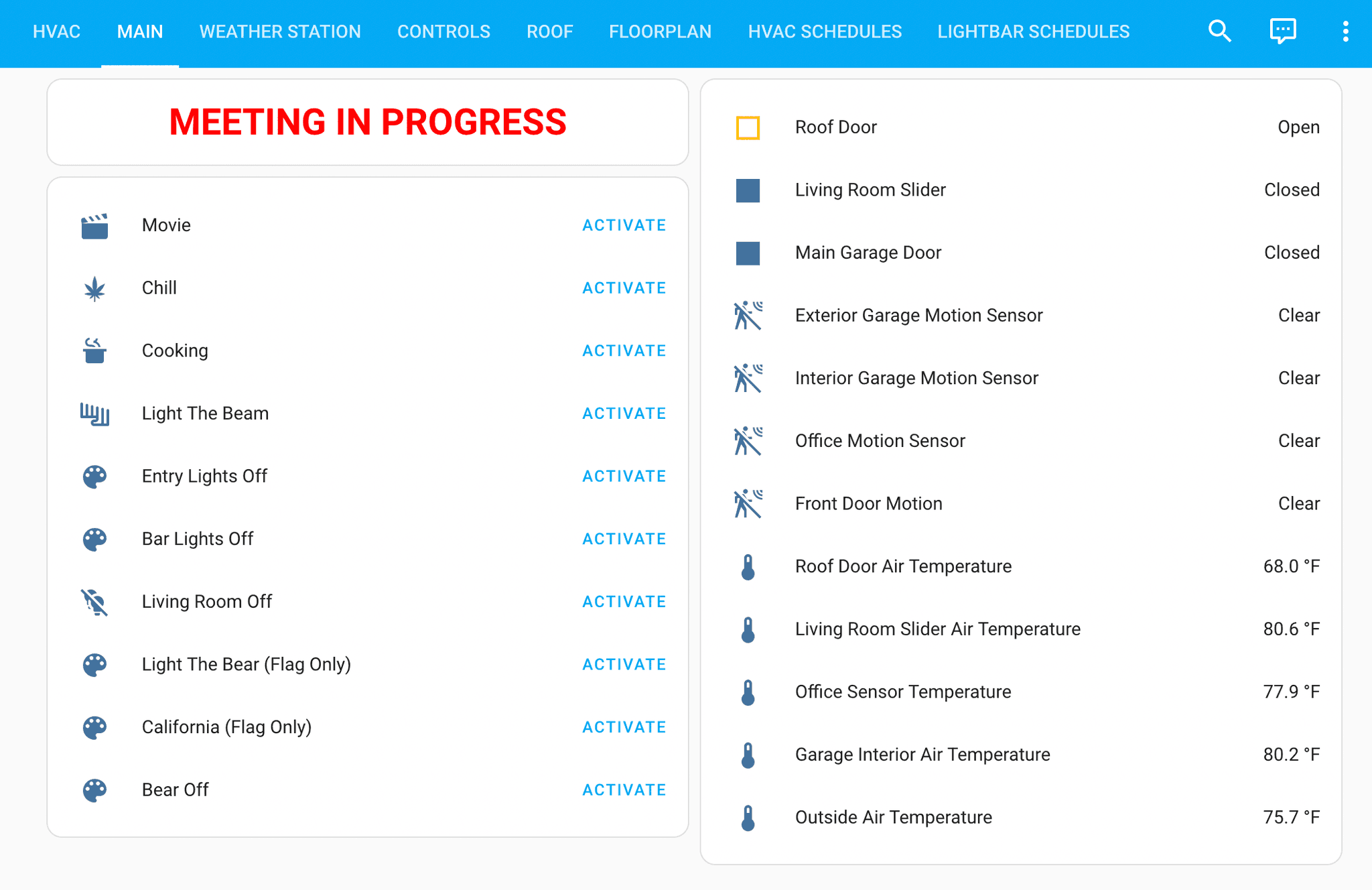
And finally I added a conditional notification on one of the Home Assistant dashboards. This displays on one of the tablets we have mounted to the wall in the kitchen on the 2nd floor and will act as a secondary indication that a meeting is taking place downstairs!
type: conditional
  conditions:
    - entity: select.wled_meeting_light_preset
      state: Meeting
  card:
    type: markdown
    content: '# MEETING IN PROGRESS'
    card_mod:
      style: |
        ha-card {
          color: red;
          text-align: center;
        }